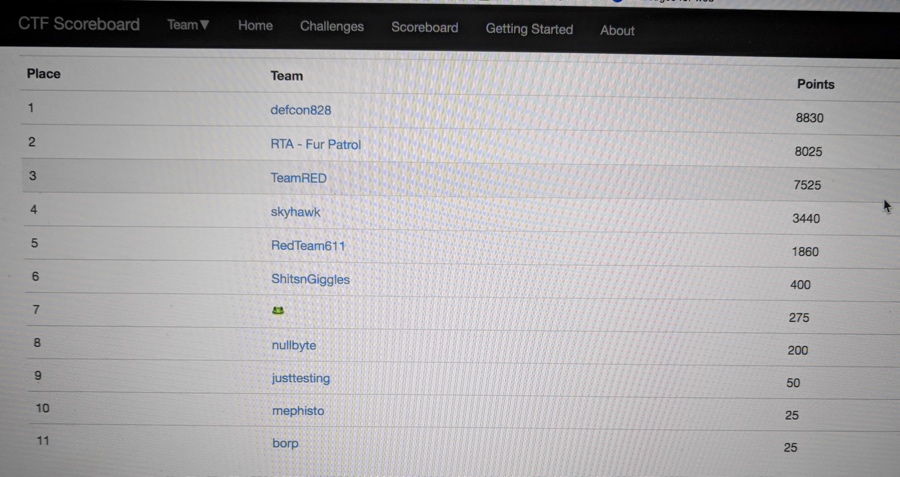
Along with my friend eth3real (and some pitching in from our new friend Brian), we teamed up as DefCon828 and won the Capture the Flag contest at BSides Asheville today. The loot was some cool WiFi Pineapple gear.
Last month, Jess and I won 1st and 2nd place respectively at BlueRidgeCon. I do feel bad about missing out on the lectures, talks, and socialization at these awesome conferences, but I can’t stay away from the CTFs. It’s bad.
I spent far too long this morning trying to get posts from a particular subreddit to show up in a particular channel on a Discord server I belong to. There was a lot of bad and wrong information out there on how to do this, and finding the correct way took me down many incorrect pathways.
The goal here is to set up the workflow like this:
Reddit post in /r/yoursubreddit > IFTTT applet > Discord webhook > posted to your Discord channel
Essentially, the Discord webhook is a very simple Discord bot that is fed content by IFTTT when someone posts to the subreddit of interest. The webhook takes that content and feeds it to the channel you desire.
For the record, this is the way to do it.
Prerequisites
A sufficient user role to edit the channel settings on Discord of the channel you want to post your Reddit content to.
Webhooks capability enabled for your Discord user role *and* for the channel you want to use. See here for more info on how to enable Webhooks.
Optional: an image/icon for the webhook. This will show up for the account that will be posting the Reddit post to your Discord channel. I used this one.
The Setup
Let me preface this by saying that these instructions were created using the desktop version of Discord and a desktop web browser. It may be a little more tricky on mobile, and what you see may be a little different, but perhaps not.
Create a webhook for your Discord Channel.
1. Go to the Discord channel you want to use and click the gear icon to Edit Channel:
2. Click Webhooks in the left-side menu, then click the blue Create Webhook button on the right.
3. Give your webhook bot a name such as “Reddit post bot” and select the channel you are having it post to.
4. This is where you can optionally upload an icon for this bot. This will show up as the user icon when this bot posts to Discord.
5. Copy the Webhook URL, or keep it handy, so that you can paste it elsewhere in a few steps.
6. Click Save.
Create an IFTTT recipe
8. Open your IFTTT account, go to My Applets, then click New Applet.
9. Click the blue “+this” to add the first action.
10. Use “Search services” to search for Reddit, and choose the “Any new post in subreddit” trigger
11. For the “Subreddit” field, enter the subreddit you want to use without the “/r/” in front of it. For example:
12. Click Create Trigger.
13. Now you should see something like the following:
Click the “+that” link.
14. This time, under “Search services,” search for “webhooks.” Select the result and click “Make a web request.”
15. Now you can paste the Webhook URL you created in Step 5 above into the URL field here.
16. For “Method” choose POST and for Application Type choose “application/json”
17. Here’s the crucial part. Under “Body” copy and paste this entire line of json code exactly as-is EXCEPT, change YOUR BOT’S NAME to the name you want to give this bot (such as “Reddit Feed Bot” or “Fred”):
{ "username":"YOUR BOT'S NAME", "content":"I have received a new post!", "embeds":[{ "title" : "{{PostURL}}", "author": { "name": "'{{Title}}' by {{Author}}" }, "description" : "{{PostedAt}}", "url" : "{{PostURL}}" }] }
Optionally, you can change the “I have received a new post!” text to anything you want to show up any time there is a new post to Discord from this bot. Leave all the rest of the code as-is.
18. Click Save.
That’s it! Any new posts in the subreddit you chose should now show up in the Discord channel you chose. Keep in mind that it isn’t instant. It usually take about 15 to 30 minutes for new posts to show up for me, for whatever reason. If anyone knows how to speed that up, please feel free to post the solution in the comments section below.
I guess, somewhere along the way, I had registered an account with Ghostery when I was using their privacy plugin.
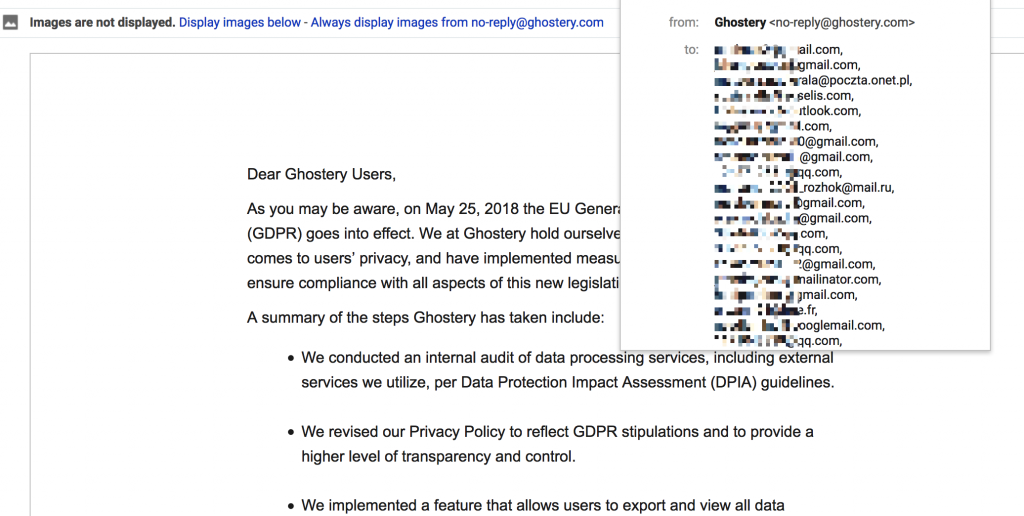
Today, I got a GDPR update notification from them, along with a ton of other users. The thing is, they failed to use the BCC field when they sent the email, so everyone’s names and email addresses were exposed to everyone else.
I suppose they better practice their GDPR habits a bit harder.
A very common question in OSCP student chat rooms and channels I hang out in is “should I be using something other than Keepnote?”
It is a fair question considering Keepnote is recommended in the PWK course materials. However, you may notice that it hasn’t been updated in over 6 years, and has actually been dropped from recent Kali versions. I have heard tales of OSCP students’ notes getting corrupted and lost, which is not a good situation to face when you are paying for limited time to complete the coursework (and exam).
If you are starting down the PWK/OSCP path, you will soon realize that you will need to take a lot of notes. Not just on the course materials, but on every exercise you do and every machine in the lab that you work on. This includes screenshots, copy-pasted output from nmap and other tools, and the specific steps you took to conquer a box (and hopefully the steps that didn’t work, from which you can reference in the future).
It adds up quickly, and it’s a challenge to keep straight as you hack away at box after box in the lab. Being a person that has kept a keen eye on note taking apps in general, long before I got my OSCP, I have some recommendations, with pros and cons of each.
In no particular order (see my Recommendations at the bottom):
Free, open-source software for Linux and Windows. You *can* get this to run on a Mac, but it’s buggy
Highly customizable through preferences and templates
Imports notes from tons of places, does some good exporting too
The Bad
Can’t paste images from the clipboard directly into notes
Not the greatest at embedding files in general
Not easily synced between devices/VMs
No Mac or mobile device support
CherryTree is like KeepNote in many ways, but it is has many more features and is actively maintained. If you are going to be solely storing and referencing your notes on one machine (your host or Kali VM), use this tool. The template feature is really awesome, and it lets you create a new note based on a template of your design. This means you could create a template for Lab VMs that you can quickly populate with data as you work on a given machine. You could do something similar for PWK exercises. It should make reporting much easier.
Feature rich app, integrates with Web Clipper browser extension
Windows, Mac, iPhone, Android native clients with web version for Linux
Is modern and hip, if that matters to you
The Bad
Costs $ if you want it to be any good. Free features seem to be waning as they push people into paying for the service
Lacks true hierarchical organization (uses tags instead of folders)
My struggles with Evernote have been well documented on this blog in the past, but some people still swear by it, so I thought I’d mention it here. They do make ease-of-access a priority, and you can get to your Evernote stuff from just about anywhere. Using it is easy until you need to organize things with any complexity, and for the PWK labs, you’d have to be OK with using the #tags instead of folders.
Exporting notes can pose challenges with formatting if you stray outside the pre-made lines
After many trials and tribulations, I ended up going all-in with Onenote for PWK/OSCP, and life in general. The ability to create multiple, separate notebooks (and choose which ones you want to see on which devices) has been my favorite feature. I can separate work from life from projects from shared stuff this way, and I still have a good amount of hierarchical ability to organize things.
Your Favorite Markdown Editor
I see people profess their undying devotion to markdown when the note-taking discussion comes up in various OSCP forums/chats, and I respect their decision and desire for simplicity. However, the one feature I used most, and I can’t imagine living without in the OSCP course, is the ability to paste a screenshot into a note. I did this so much that it would have driven me crazy to have to do anything else, and with markdown, you have to do some form of “save image/reference image via text in the note/embed via some other mechanism”. There are extra steps involved, and you can’t easily do the copy/paste thing.
Clippers/Screenshot Tools
Speaking of screenshots and the need to embed them in your notes, there are several options I would recommend depending on your choice of note taking apps and the platforms upon which you use them. Here are my top three:
Snap ‘n Drag Pro (Mac only). Awesome customization options, ability to edit captures (add arrows/highlight/blurs), automatically adds to clipboard.
Skitch – If you use Evernote, use this (unless you are on a Mac, see above)
Shutter – Native Linux screenshot app
For PWK, I found the Evernote and Onenote clipper browser extensions to be limiting in that they only let you clip things from your web browser, when I needed to clip terminal output most frequently.
My Recommendations
Because I am primarily a Mac user, I need good support for screenshot pasting, and I prefer hierarchical note structure for organization, I went with Onenote and Snap ‘n Drag Pro for my PWK and OSCP work. I continue to use these two tools in my personal and professional life, too.
If I were not a Mac user, I’d go with CherryTree and Skitch.
Have any opinions or additional input about all of this? Let me know in the comments.
I have obtained a standard user account on Windows. Now what?
This is a common question I see people inquire about frequently on the Discord/Slack/Mattermost servers I hang out on. This includes people working on CTF exercises (Hack the Box), OSCP/PWK studies, and just pentesting in general. The answer, of course, is that you need to enumerate the system and find a way to become Admin.
The methodology for how you actually do this depends on a lot, all depending on your specific environment and circumstances.
Windows Privilege Escalation to the Rescue
Here are some useful resources on what to do next in your given situation, after you have succesfully exploited your way onto a Windows box, but before you have the system administrator role. I collected these links, snippets, and exploits during my OSCP studies, saving them in this massive OneNote notebook. Rather than letting them sit there where no one but me can access them, I thought I’d share.
Some of these get pretty detailed, and some of them have links to yet even more resources on this topic.
Have fun…this rabbit hole runs deep!
Privesc Resources
Updated 11.11.18: A new resource I came across that looks pretty awesome:
Care about your privacy in the wake of all the Facebook news?
Switch to Mozilla Firefox as your main browser. It is now faster than Chrome or Internet Explorer, it uses less memory, and it goes a lot further to care for your privacy online and keep you safe. https://www.mozilla.org/en-US/firefox/new/
This setup will not only help you keep Facebook at arm’s length, it will help you in general to avoid malicious advertisements, malware, ransomware, and various types of web browser hijacking while surfing the Internet. Of course, you can always choose to leave Facebook altogether with these alternatives.
Remember too that you will be safer and enjoy more privacy online if you make a point of using a hardwired internet connection, rather than wi-fi. Although wi-fi can be useful in many ways, hardwired is the way to go if you care about your personal safety, online and offline.
I no longer do Facebook. In light of recent Facebook events (#facebookgate) related to data harvesting and various inaction in being complicit with election manipulation, I have deleted my account enirely.
I you want to keep up with me, and I hope you do, you can follow me here on my website or via Twitter at @willc.
Some day, some other social media platform may creep up into being something worthwhile (remember Ello?), but until then, this will have to do.
About a year ago, Mozilla added “captive portal” support to Firefox in an attempt to enhance usability when connecting to free WiFi portals, such as at an airport or a hotel. You have probably interacted with captive portals in the past, and if you are a Firefox user, you may have wondered why you had to open Chrome or IE or Safari to be able to log into the WiFi system, as you could only get the “Sign In” page to pop up in one of those browsers before getting access to the full Internet.
Firefox added support for these “Sign In” pages about a year ago, so that you don’t need to use a (shudder) different browser. That is all well and good, except for when it comes to using Burp Suite as a proxy for Firefox. If you are a pentester, you are probably used using Firefox (especially on Kali Linux) for your traffic proxying through Burp, as they make it easier than any other browser to set up and disable the proxy.
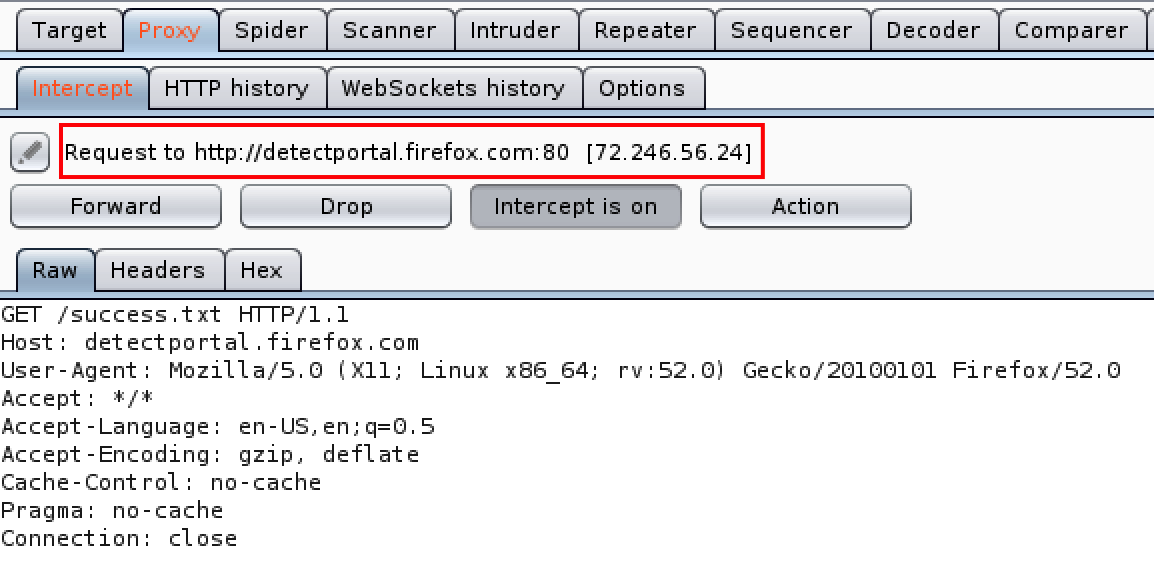
However, you may now be seeing a ton of requests like this:
Disable the detectportal.firefox.com requests
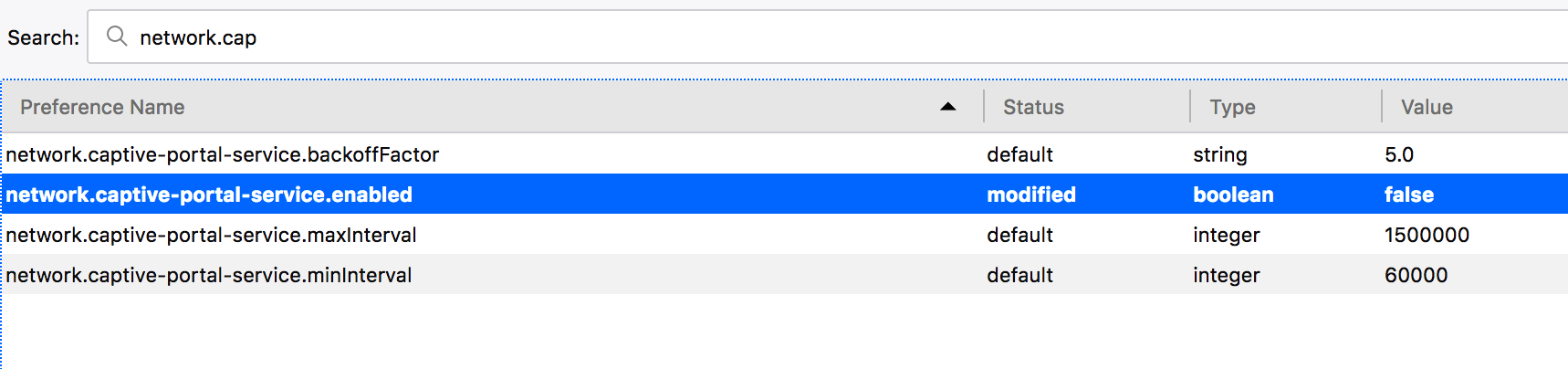
Seeing all those requests in Burp, much less thinking about all the noise they generate otherwise, is annoying. Because you probably won’t ever need to use a Captive Portal on your pentesting machine (a VM, in my case), you can completely disable Firefox’s attempts to detect them. Just browse to about:config and enter network.captive-portal-service.enabled. Double click it to change its value to “false” and you should be good to go.
Just over a year ago, Rachael and I decided that we’d like to combine our love of escaping the house sans-children with our love of writing. Being fans of fine food and environments that enable us to focus on each other during rare, precious date nights, we thought it might be fun to share our experiences in Asheville with other couples who might be looking for a great spot to escape to, if only for an hour, or if for a whole evening. Plus, it would be a team effort that would allow us to collaborate on something we both love: writing and geeking out.
Thus, Date Night Appetite was born and officially launched back in September. To date, we’ve reviewed four local spots, but we also have some Instagram and Facebook posts to help share smaller delights that we find between date nights.
Check it out, and help add your ratings to what we have posted. And let us know if you have any questions or suggestions!
Here are some resources and tools I found useful while taking (and passing!) the Pentesting with Kali (PWK) course in preparation for the Offensive Security Certified Professional exam. It has been about two weeks since I passed, and I am still reveling in the satisfaction that has come with it, as it was ultimately a year-long effort to prepare for and take the course in order to pass the exam.
Many people post the usual resources that you can find on various blogs related to the course (g0tmi1k, highoncoffee, pentestmonkey, etc), and those are absolutely useful, but what I have assembled here are less common, and are hopefully useful for those of you about to embark on, or already in, the OSCP journey. They were useful for me.
Enjoy!
How to Pass the OSCP
How to pass the OSCP
Recon
Find vuln
Exploit
Document it
Recon
Unicornscans in cli, nmap in msfconsole to help store loot in database.
Most of the machines in the PWK labs require that additional step. You seldom run across a VM where you run an exploit and get root right away, with no intermediary privilege escalation step needed. In fact, it is an entirely unique skill that you need to develop, practice, and practice again. What’s more, you have to learn “privesc” for both Linux/Unix and Windows machines — two entirely different methodologies.
Path to OSCP
https://localhost.exposed/path-to-oscp/ An interesting ‘trials and tribulations’ story of one man’s path to accomplishing his goal: the OSCP certification. Contains both video logs and various notes and snippets that may be helpful to you.
One Two Punch
https://github.com/superkojiman/onetwopunch I didn’t discover this script until I had already rooted about 15 of the machines in the PWK labs, but I wish I had learned of it sooner. It runs a unicornscan (UDP) to find open ports, then passes them to nmap for service detection. It also looks at all 65,535 ports, so you don’t miss anything. Set this up as one of the first things you do when you start working on a new machine (it takes a while to run), then come back to check the results after you’ve done some manual exploration.
Reconnoitre
https://github.com/codingo/Reconnoitre “A reconnaissance tool made for the OSCP labs to automate information gathering and service enumeration whilst creating a directory structure to store results, findings and exploits used for each host, recommended commands to execute and directory structures for storing loot and flags.”
This tool, named CES tools, ended up being a workhorse, both in the labs and in the exam. Being able to check quick nmap results while more in-depth scans were still going was invaluable for getting things rolling along.
General Tips from Techexams
http://www.techexams.net/forums/security-certifications/116262-oscp-starting-13-12-2015-a-6.html#post1028560 This post has a lot of good tips for the OSCP exam. I can’t stress enough the need to be prepared for the exam, having all the things you need at your fingertips so that you don’t have to go digging through notes of files when you are tight on time or limited on brain power because you’ve been working on this for 18 straight hours.
The most useful parts of that site for me were: Finish your lab report for 5 extra points and optionally the course exercises for an additional 5 points. You might need them to reach the 70 points.
You need to write a penetration test report after the exam. Make sure you know how to write it so you know what information to collect during the exam. The lab report is a great practice for this, use it to learn how to document properly.
There were so many people in the NetSec Focus OSCP Slack channel that skipped the exercises, skipped the videos, and skipped documenting the requisite 10 VMs to get the bonus points for the exam. I saw more than a few of them fail the exam as a result. I would likely have failed the exam had I not completed the exercise and 10 lab machine documentation. All I will say is this:
Do not skip the exercise or lab documentation. These are free points. The way the exam scores total up, you may well need these points to pass!
Timing of the Exam
Also from this page, I chose to follow this exact strategy for timing, and it really worked for me. The important thing to consider is being able to have two fresh starts.
“The second attempt I’ve started the exam at 3 PM and planned to work till 3 AM and then sleep till early morning. This way I had 2 ‘fresh’ starts for the exam to utilize more productive hours.”
I ended up sleeping from 2am to 5am, at which point I set an alarm and a full pot of coffee to carry me through until the exam was over. I also had the support of my amazing wife, who kept me fed and hydrated the whole time.
The Offsec PWK Kali VM
Use the provided Kali VM, do not use the latest/greatest Kali version. Offset provides you with a VM that has been customized to contain everything you need to complete the course and the exam. There is no need to update it. There is no need to run the latest version of Kali. In fact, they customize it in certain ways to make sure you don’t run into problems, so don’t try to use something different. I witnessed multiple people having problems with this in the NetSec Focus OSCP Slack channel, and I wisely used the Offset Kali VM the whole course to avoid issues.
The NetSec Focus Slack Channel
I have mentioned it a few times, but this Slack channel was invaluable during my OSCP journey. It allowed me to ask questions, bounce ideas off others, and chat with folks who were currently in the course or had already passed it. If you are in the OSCP course and you join the group, ask a moderator to add you to that private OSCP channel once you join. Keep in mind that they do not allow spoilers, or even questions about specific lab machines. This resource is a great asset for those taking the PWK/OSCP course, and I made some good friends from being there and suffering through it all.

 I spent far too long this morning trying to get posts from a particular subreddit to show up in a particular channel on a Discord server I belong to. There was a lot of bad and wrong information out there on how to do this, and finding the correct way took me down many incorrect pathways.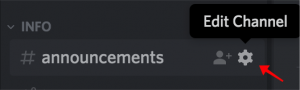


 Just over a year ago, Rachael and I decided that we’d like to combine our love of escaping the house sans-children with our love of writing. Being fans of fine food and environments that enable us to focus on each other during rare, precious date nights, we thought it might be fun to share our experiences in Asheville with other couples who might be looking for a great spot to escape to, if only for an hour, or if for a whole evening. Plus, it would be a team effort that would allow us to collaborate on something we both love: writing and geeking out.